Luxjim

Plant Moisture Sensor

Plant Moisture Sensor

Plant moisture sensor • DIY • Soil

Plant Moisture sensor

A simple, smart and durable circuit that tells you exactly when to water, without damaging the electrodes or guessing the real condition of the soil.

Why this design matters

  • It truly monitors soil moisture instead of acting like a rough indicator with limited accuracy.
  • The alternating current applied to the electrodes reduces electrolysis and greatly limits corrosion.
  • The detection threshold can be adjusted to match the plant type and the soil characteristics.

Table of contents

  1. Why install a plant moisture sensor?
  2. How the circuit measures soil moisture
  3. Key electronic components
  4. Circuit diagrams: sensor and power supply
  5. Setup, electrodes and practical tips
Use case

Why install a plant moisture sensor?

Many indoor plants suffer less from lack of light than from irregular watering. A reliable moisture sensor removes the guesswork and helps you water at the right time, not too early and not too late.

The value of this project goes beyond a simple LED warning. The circuit is built to provide stable, usable information that remains practical for day-to-day monitoring across different plant types.

The sensor

The sensor

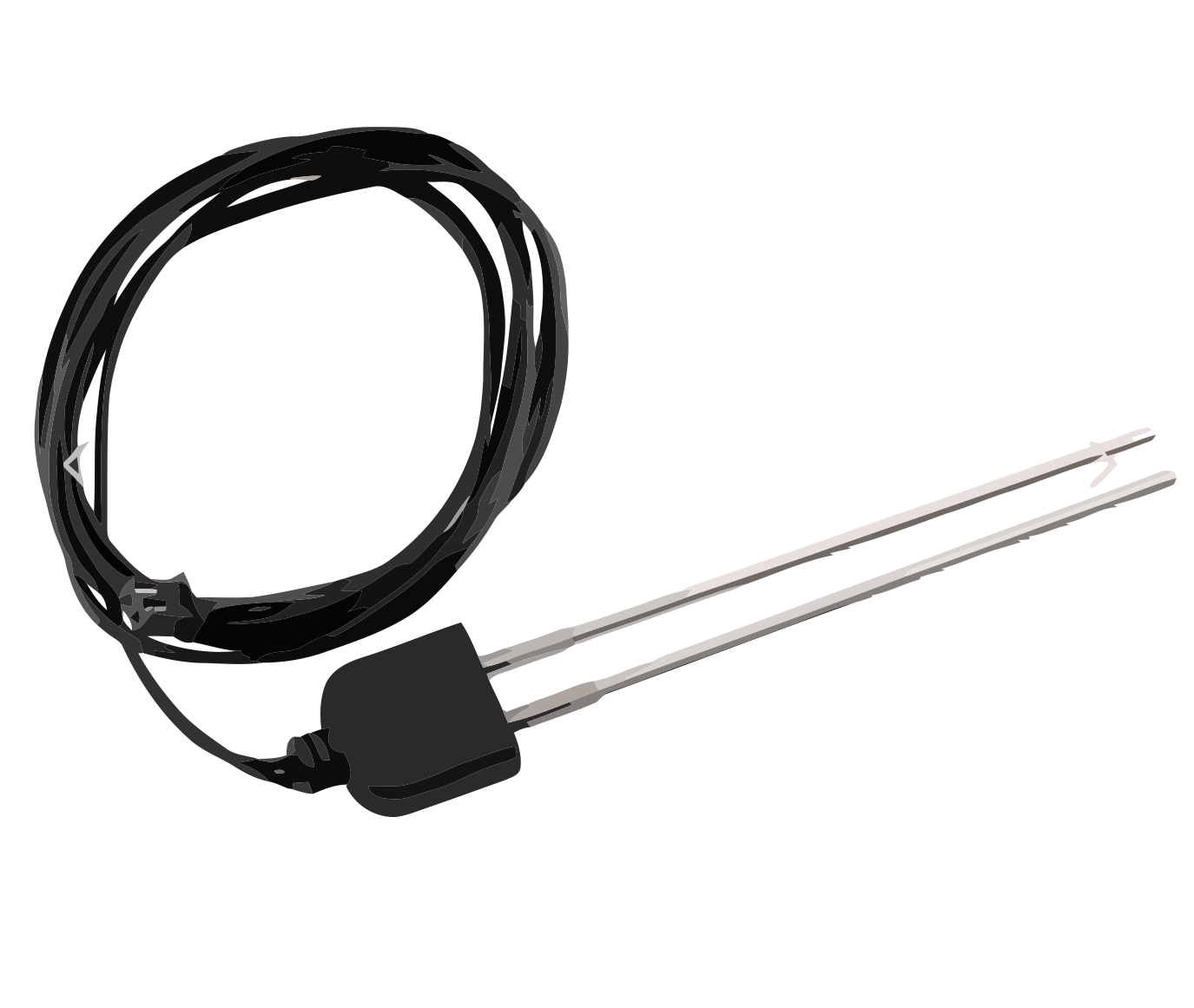
Soil humidity sensor

Soil humidity sensor which could be used for this project

Plant addict ?

If you're interested in this project...

Are you looking for peace of mind when it comes to watering your plants? Contact Luxjim using this form:
Contact form. To discuss a quote or get professional advice if you’d like to carry out the project as DIY.

Principle

How the circuit measures soil moisture

The system is based on two electrodes inserted into the potting soil. As soil moisture changes, the electrical resistance between those two points changes as well.

A 4047-based oscillator generates two complementary signals that inject an alternating current of about 58 Hz into the electrodes. This design choice is important because it prevents the electrolysis issues commonly found in low-cost DC soil sensors.

The voltage measured at the P1 potentiometer is then compared to a stable reference of about 2.5 V. As soon as the soil becomes too dry, the red LED turns on to indicate that watering is needed.

Visual status

How to read the LEDs

Green LED: the soil still contains enough moisture.

Red LED: the measured resistance indicates dry soil.

Between those two states, the inherent capacitance of the soil can create an intermediate zone where both LEDs appear to participate in the indication. That is actually useful, because it shows the plant is getting close to the critical threshold.

Components

Key electronic components

Sensor stage

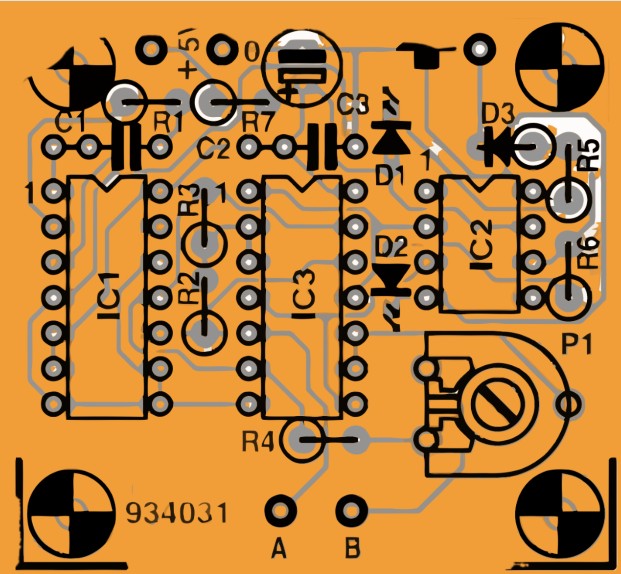
  • IC1: 4047, used as the oscillator.
  • IC2: TLC271, comparator / operational amplifier.
  • IC3: 4066, analog switch.
  • D1: low-current green LED.
  • D2: low-current red LED.
  • 1N4148, used as the signal diode.

Passive parts and adjustment

  • R1: 100 kΩ.
  • R2, R3: 15 kΩ.
  • R4: 820 Ω.
  • R5, R6: 680 Ω.
  • R7: 22 Ω.
  • P1: 1 kΩ trimmer to set the threshold.
  • C1: 39 nF, C2: 100 nF, C3: 10 µF.

Workshop tip: graphite is an excellent material for the electrodes. It is inexpensive, stable, and much less vulnerable to corrosion than ordinary metal probes.

Circuit 1

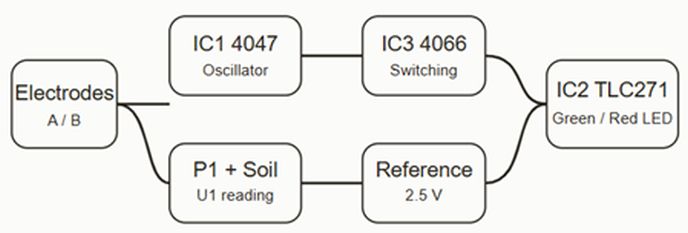
Simplified sensor diagram

The 4047 generates the alternating signal, the 4066 conditions the measurement path, and the TLC271 compares the soil-dependent voltage with a stable reference.

Circuit 2

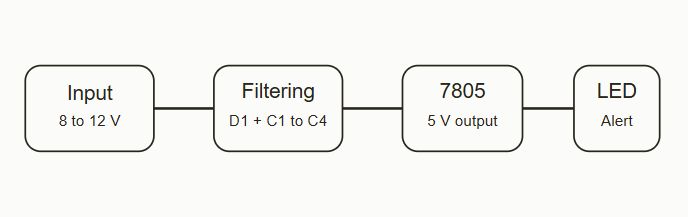
Simplified 5 V power supply diagram

A regulated power stage built around a 7805 can feed one or several sensor modules, with a current draw of about 5 mA per unit.

Setup

Setup, electrodes and practical tips

Keep roughly 4 cm between the electrodes in the soil for a consistent reading.
Start with trimmer P1 in the middle position, then fine-tune it according to the plant you want to monitor.
An orchid, a pothos and a standard houseplant do not need the same moisture level, so the threshold should always be adjusted experimentally.
If you want to supervise several pots, a shared 5 V supply can centralize alerts through one common LED indicator.

In practical electronics, the difference between a gimmick and a useful circuit usually comes down to details: electrode quality, stable power supply, and proper threshold calibration. In this project, those details are exactly what make the sensor worthwhile.

Blog

Blog

Circuit-board

Written by: luxjim

My name is Edouard Jimmy KANKU
multitech guy working in IT area and interested in hardware/software analysis troubleshooting and repair. Android app development, electronics, IoT projects management.

Comments(s)

LUXJIM Blog

Welcome to our blog !

Discover LUXJIM, your IT and smartphone expert in Schifflange, Luxembourg

Welcome to the official page of LUXJIM, founded by KANKU Edouard, a specialist in IT solutions. We are proud to support individuals and businesses in IT repair, support, and development, with recognized expertise in the Luxembourg market.

Our Services

  • IT service & electronic repair :
    Smartphones, game consoles, PC, laptops… We respond quickly to diagnose and resolve your technical issues.
  • Application Development:
    Need a custom app? Our team supports you from design to deployment.
  • Personalized advice: Benefit from KANKU Edouard’s experience to optimize your IT infrastructure and ensure your data security.

Special offer

To celebrate the launch of our business, we offer free labor to the first 10 customers! Take this opportunity to discover our services and enjoy professional support.

Contact us today !

You May Also Like…

Printed-circuit-board

Plant Moisture Sensor

Plant moisture sensor • DIY • Soil Plant Moisture sensor A simple, smart and durable circuit that tells you exactly…

Circuit-board

Blog

Written by: luxjim My name is Edouard Jimmy KANKU multitech guy working in IT area and interested in hardware/software…

Alienware15r2

Alienware 15 R2 Repair

Alienware 15 R2 Repair : Display freezes after 5 minutes | CPU / GPU Overheating Alienware 15 R2 : Display freezes…

Alienware 15 R2 Repair

Alienware 15 R2 Repair


Alienware 15 R2 Repair : Display freezes after 5 minutes | CPU / GPU Overheating


Alienware 15 R2 : Display freezes after 5 minutes • CPU / GPU overheating

Does your Alienware 15 R2 freeze after a few minutes, with the mouse, keyboard, and USB ports becoming unresponsive? This symptom is very often linked to overheating of the CPU/GPU combination and a dirty or poorly dissipated cooling system.

In this article, I present a real case of repair carried out in my workshop in Luxembourg: diagnosis, complete disassembly, cleaning, replacement of thermal paste and professional advice.

1. Symptoms and diagnosis of an Alienware 15 R2 that freezes

The problem reported by the customer: after 3 to 5 minutes of use under Windows, the display freezes completely, the mouse stops moving, the keyboard does not respond and even the USB devices become inoperative, forcing a restart.

After an initial software check (drivers, Windows updates, antivirus) and a test in safe mode, the freezes systematically recur as soon as the CPU or GPU is used, which clearly points to a problem of overheating or poor heat dissipation.

Basic checks

  • Fans that ramp up very quickly even under light use.
  • The chassis gets hot around the keyboard and rear grilles after only a few minutes.
  • No software error message before the complete system failure.
  • Abnormally high CPU/GPU temperatures during stress testing, with peaks approaching the manufacturer's safety limit.

The diagnosis: saturated cooling system (dust), dry thermal paste on CPU / GPU and possibly worn thermal pads, making dissipation insufficient on this Alienware 15 R2 model already known to overheat.

2. Preparations and safety instructions

Before opening an Alienware 15 R2, it is essential to prepare a clean, well-lit workspace and to plan storage for the numerous screws and cables of this high-end chassis.

Tools used

  • Precision screwdrivers (Phillips cross-head, possibly Torx depending on the series).
  • Spudger and plastic pry tool to unclip the hood without damaging it.
  • Fine anti-static tweezers for handling ribbon cables and connectors.
  • Dry air blower or compressed air can for cleaning fans and radiators.
  • Isopropyl alcohol (90% or more) and lint-free wipes to remove old thermal paste.
  • New high-quality thermal paste (like Arctic MX, Noctua, etc.).
  • Anti-static mat or wristband recommended to limit ESD risks.

Precautions

  • Completely turn off the laptop and unplug the power supply and all peripherals.
  • Press and hold the power button for 10 seconds to discharge the capacitors.
  • Work without rushing, noting the location of the screws of different lengths.

3. Disassembly of the Alienware 15 R2

The Alienware 15 R2 requires relatively advanced disassembly to fully access the CPU/GPU cooling system and properly clean the fans and radiators.

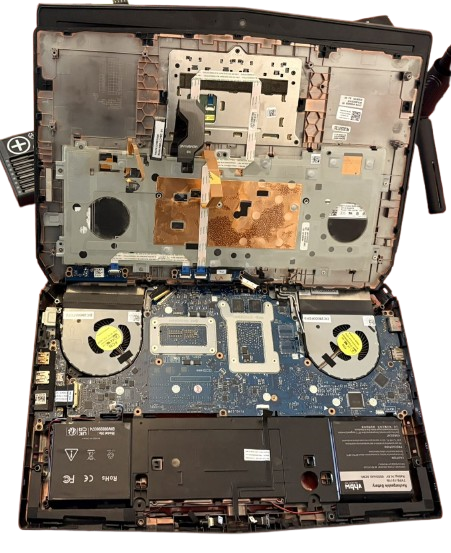
Alienware 15 R2 lower cover removed
Opening the lower cover of the Alienware 15 R2 to access the components.

3.1. Removing the lower cover

  1. Turn the laptop upside down, bottom cover facing up, onto a flat, rigid surface.
  2. Remove the screws from the hood (often visible around the perimeter) noting their position.
  3. Carefully unclip the cover using a plastic tool, working around it without forcing it to avoid breaking the clips.

3.2. Disconnecting the battery and modules

  1. Locate the battery connector on the motherboard and disconnect it by pulling parallel to the PCB, never upwards.
  2. If necessary, remove the battery pack after removing its fixing screws.
  3. Remove SSDs, HDDs, Wi-Fi modules and RAM if they obstruct access to the cooling system.

Alienware 15 R2 interior with fans and heat pipes
Internal view of the Alienware 15 R2 with the fans and heat pipe network.

3.3. Access to the motherboard and cooling system

Depending on the configuration, it is sometimes necessary to remove the keyboard, the top case or certain cables to completely free the motherboard before the fan and heat pipe assembly can be removed.

  1. Carefully disconnect the cables from the keyboard, touchpad and ports.
  2. Remove the marked screws that hold the motherboard in place, then carefully lift the board.
  3. Identify the heatsink block that covers the CPU and GPU, connected to the fans by heat pipes.

4. Repair of the CPU / GPU cooling system

The key phase to resolve overheating issues is to clean the fans, unclog the heatsinks, and replace the thermal paste on the CPU and GPU of the Alienware 15 R2.

4.1. Removal of the radiator and fans

  1. Disconnect the fan connectors from the motherboard.
  2. Remove the small screws that attach the fans to the chassis and then set them aside.
  3. Unscrew the heat sink block following the numbered order indicated around the CPU and GPU to gradually release the pressure.
  4. Gently relieve the heat pipes and lift the entire radiator assembly upwards, without twisting the tubes.

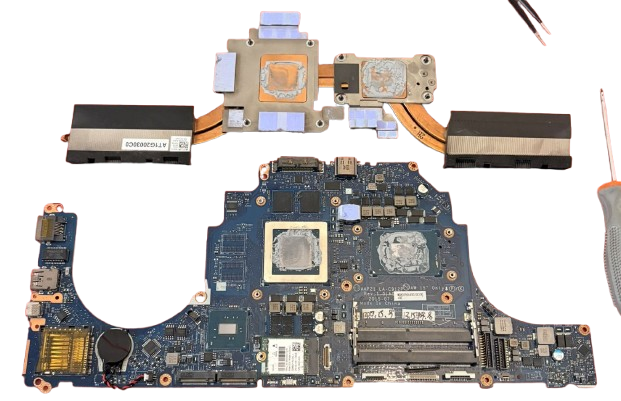
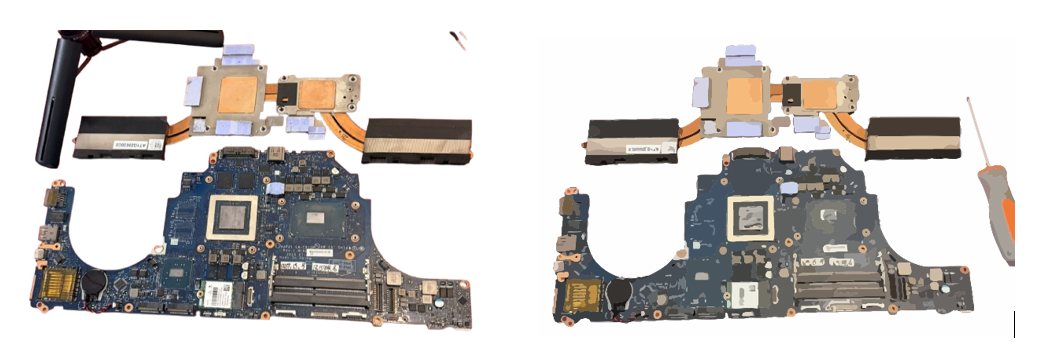
Alienware 15 R2 heatsink removed, CPU and GPU visible
Radiator removed: Alienware 15 R2 CPU and GPU ready for repasting.

4.2. Cleaning of fans and radiators

  • Hold the fan blades with a finger and blow with compressed air to remove dust without running it at very high speed.
  • Dust off the radiator fins (on the side with the exhaust grilles) until proper airflow is restored.
  • Clean the chassis around the cooling system to prevent dust from accumulating too quickly.

4.3. Replacing the thermal paste (repaste)

  1. Using a lint-free cloth dampened with isopropyl alcohol, carefully remove the old thermal paste from the surface of the CPU and GPU.
  2. Also clean the copper base of the radiator until it is clean and shiny.
  3. Check the condition of the thermal pads on the VRMs and video memories: if they are crushed or damaged, replace them with pads of the same thickness (often 1 mm on this type of machine).
  4. Apply a small dab of thermal paste to the center of the CPU and GPU (amount equivalent to a grain of rice or a pea depending on the surface).
  5. Carefully place the radiator back in position, making sure to align the screws properly, without sliding it to avoid creating air bubbles.
  6. Tighten the screws in a crisscross pattern, following the numbered order, to distribute the pressure and thermal paste evenly.

Applying thermal paste to the Alienware 15 R2 CPU and GPU
Application of a new high-performance thermal paste to the CPU and GPU.

4.4. Temperature Check

After partial reassembly (motherboard, battery, radiator, fans, but before final closure), a first start-up allows monitoring and stress test tools to be launched to check thermal stability.

  • CPU/GPU temperatures are significantly lower under load than before the intervention.
  • More gradual fan speeds, without instantaneous increases to maximum.
  • The blockages disappear after 3 to 5 minutes of standard use.

5. Reassembly and final testing

Once the temperatures have returned to control, the Alienware 15 R2 is completely reassembled following the reverse order of disassembly, taking care not to forget any ribbon cables or screws.

5.1. Step-by-step reassembly

  1. Reconnect all connectors (fans, screen, keyboard, touchpad, ports, etc.).
  2. Reinstall the battery, SSD/HDD, Wi-Fi and RAM to their original locations.
  3. Replace the lower cover and screw all the screws back in to the correct length.

5.2. Stability Tests

  • Full boot under Windows, then intensive use for at least 30 to 60 minutes (gaming, video rendering, benchmarks) to validate stability.
  • Real-time temperature monitoring to ensure that temperatures remain within normal ranges for this Alienware model.
  • Checking for the absence of freezes, reboots, frozen screens or screen artifacts.

Alienware 15 R2 booting into Windows
Full boot under Windows.

Alienware 15 R2 heavy use 30 to 60 minutes
Alienware 15 R2 intensive use 30 to 60 minutes.

6. Difficulty, advice and professional opinions

Repairing an Alienware 15 R2 that freezes due to CPU/GPU overheating is not a simple fan dusting operation: it is an advanced disassembly that requires method, patience and a minimum of hardware experience.

For a novice user, the risk is breaking a chassis clip, tearing off a keyboard ribbon cable, or applying too much thermal paste and damaging the thermal contact, or even damaging the motherboard by static electricity.

In the workshop, this type of intervention often makes it possible to significantly extend the lifespan of the Alienware 15 R2, reduce fan noise and restore stable performance in games or production.

If you do not feel comfortable with this level of disassembly, I strongly recommend that you entrust your machine to a professional: you will avoid unpleasant surprises and benefit from a complete diagnosis (component testing, BIOS update, general check).

Based in Schifflange, Luxembourg, I offer a repair and maintenance service for Alienware laptops and other gaming laptops, with a transparent quote before any work begins. Feel free to contact me via the contact form on luxjim.com for a personalized diagnosis.

Smartphone Repair

Smartphone Repair

Repairing an iPhone 12 Pro fallen into water: oxidised motherboard | luxjim.com

Repairing an iPhone 12 Pro fallen into water: oxidised motherboard


Introduction: Water damage on iPhone 12 Pro

The iPhone 12 Pro is IP68 certified, but prolonged immersion in salt or sugar water, seawater (at the beach for example), swimming pool (chlorine), or a prior impact on the chassis may be enough to allow water to penetrate inside the device.

When an iPhone fails to turn on after being dropped in water, the main cause is often an oxidized motherboard: liquid residue attacks components, creates short circuits and blocks essential power lines.


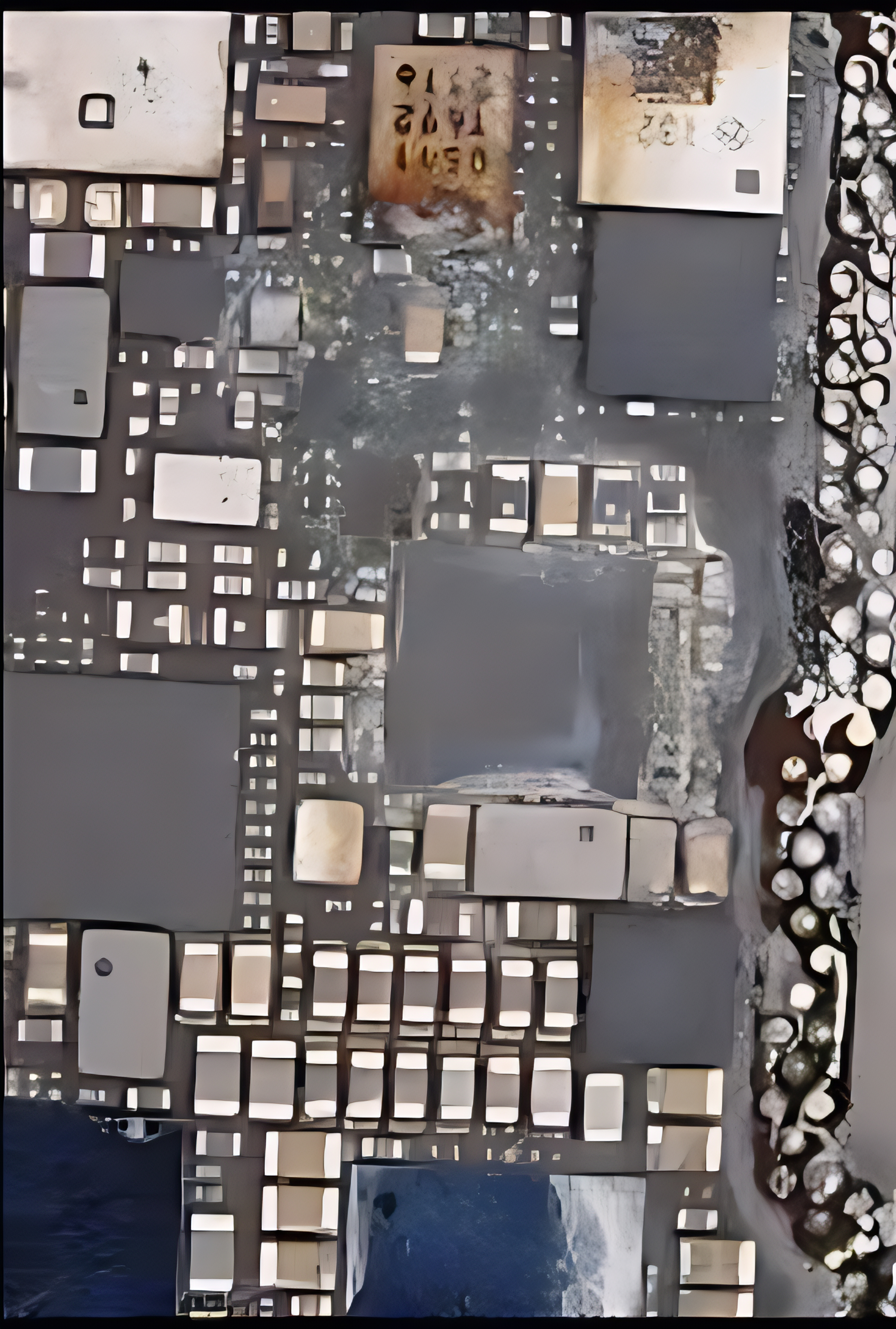
iPhone 12 Pro motherboard with visible oxidation after being dropped in water
iPhone 12 Pro motherboard showing severe oxidation after immersion.

Diagnosis: confirm the fault and oxidation

Questions for the customer

Before starting, we seek to understand what happened: type of liquid (fresh water, salt water, sugary drink, seawater, swimming pool), duration of immersion and actions attempted afterwards (charging, attempted relighting, drying, etc.)

Initial workshop checks

In the workshop, we avoid plugging the iPhone directly into a charger: the board is powered via a laboratory power supply to observe the consumption and detect any possible short circuit.

We also inspect the exterior (speaker grilles, camera lens, chassis) to look for traces of liquid before opening.

Internal inspection

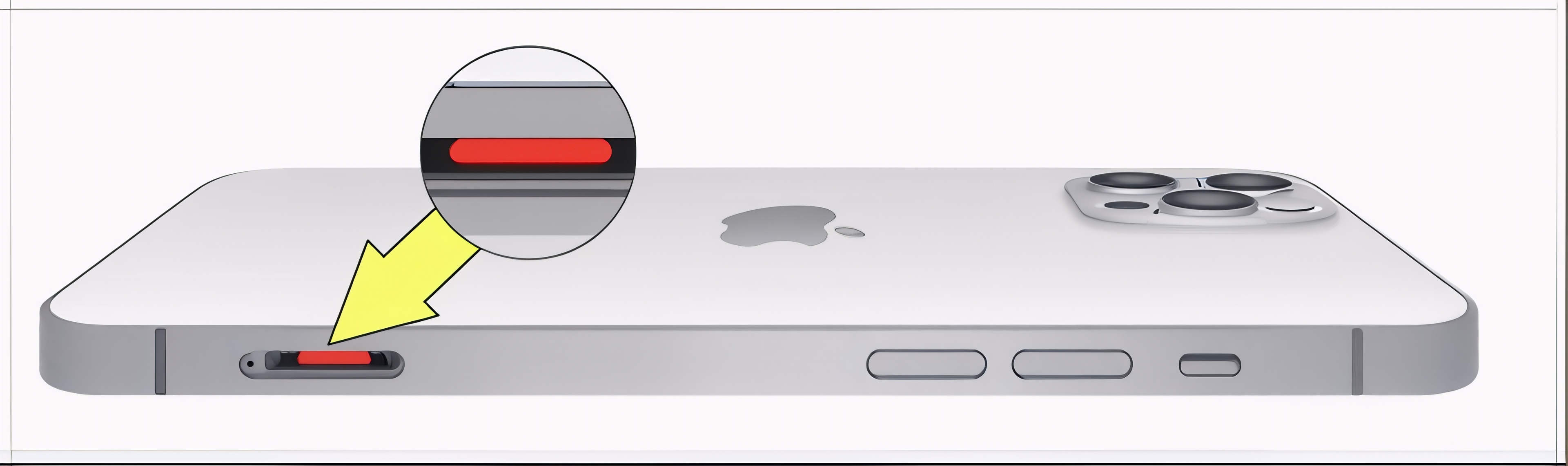
Once the screen is removed, we check the humidity indicators, connectors and shielding: oxidation often manifests itself as green or white traces on the components and screws.


Humidity indicators activated inside an iPhone 12 Pro
Internal humidity sensors turned red after contact with liquid.

Complete teardown of the iPhone 12 Pro

Workstation preparation

The disassembly begins on a clean, well-lit work surface, with an ESD mat and wrist strap, and the iPhone is completely powered off. The SIM card and accessories are removed.

Opening the iPhone 12 Pro

We remove the two Pentalobe screws near the Lightning port, then heat the perimeter of the screen to soften the adhesive before gently lifting the panel with a suction cup and plastic picks.

Access to the motherboard

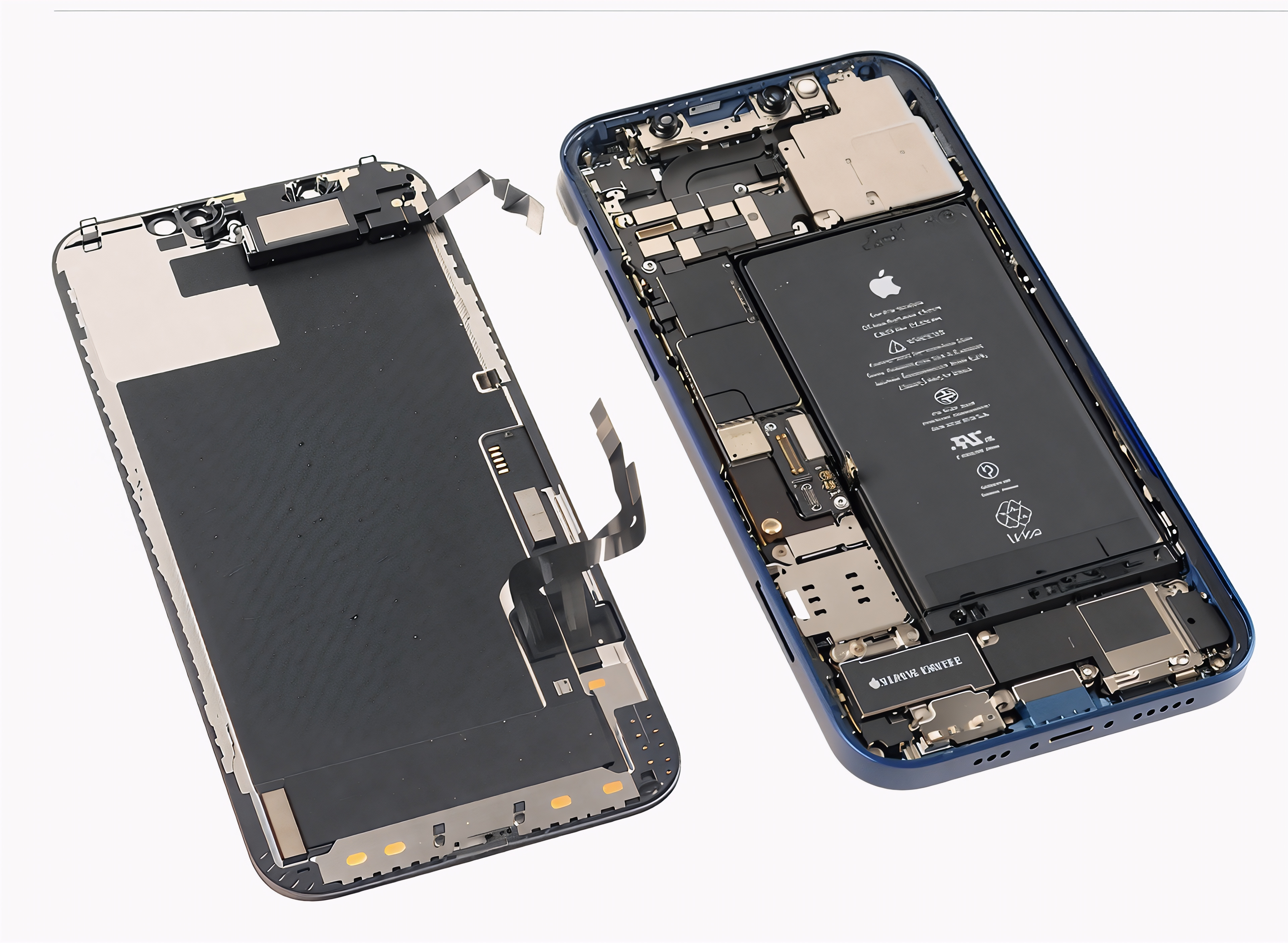
The battery is disconnected first, then we remove the protective plates, disconnect the ribbon cables and modules, and remove the motherboard, taking care to note each screw and each connector.


iPhone 12 Pro opened with motherboard being removed
iPhone 12 Pro opened, motherboard being removed for cleaning and microsoldering.


Repair procedures for an oxidized motherboard


Initial cleaning and identification of critical areas

The motherboard is first cleaned with PCB cleaner or isopropyl alcohol, then inspected under a microscope to locate corroded areas: connectors, capacitors, power lines and areas near the charging connector.

Removal of the shielding and thorough cleaning

When oxidation has crept under the shielding, we remove it with hot air, protect the healthy areas, then perform a thorough cleaning, sometimes supplemented by an ultrasonic bath with a suitable PCB solution.

Searching for short circuits and faulty components

Using a multimeter and a lab power supply, we test the main power lines, inject a low voltage on the shorted lines, then locate the faulty components using the heat generated (thermal camera, alcohol, microscope).

Component replacement and track repair

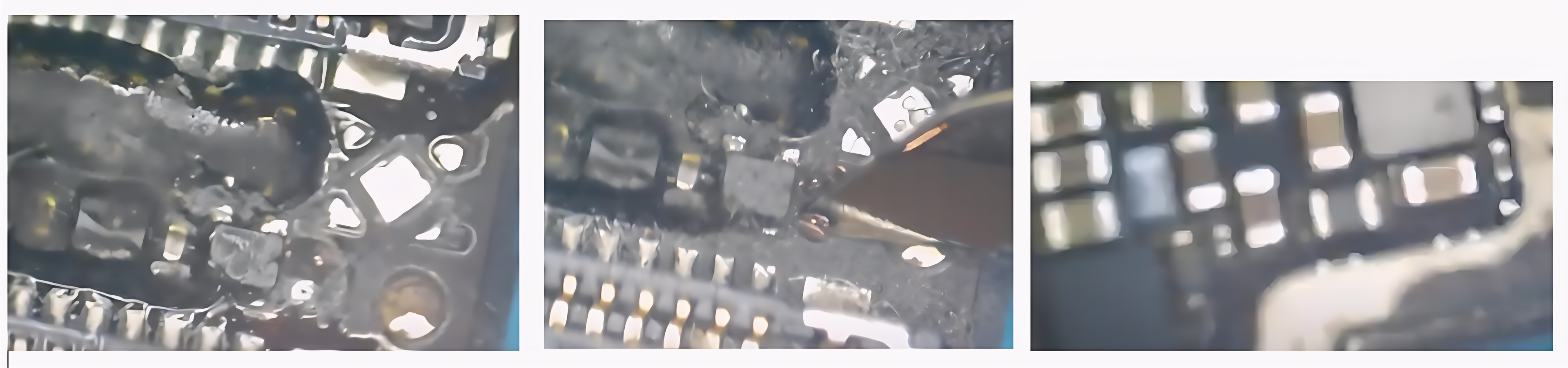
Oxidized components are desoldered and replaced with donor parts, and damaged traces are remade using reballing wire where possible, before a final cleaning with flux and then IPA.


iPhone 12 Pro motherboard area repaired after oxidation
Oxidized area cleaned and components replaced on iPhone 12 Pro motherboard.

Tools, consumables and protective equipment used

  • Pentalobe, tri-point and Phillips screwdrivers suitable for iPhone.
  • Suction cup, plastic guitar picks, nylon spudger.
  • Anti-static mat and wristband (ESD).
  • Hot air station, fine tip soldering iron, no-clean flux.
  • Digital or optical microscope.
  • PCB cleaner, isopropyl alcohol, antistatic brushes.
  • Ultrasonic bath and suitable PCB solution, if necessary.
  • Laboratory power supply, multimeter, possibly a thermal camera.
  • iPhone 12 / 12 Pro donor boards for component recovery.

Testing, reassembly, and possible scenarios

Flat tests

Before full reassembly, we test the board flat with screen, battery and some essential modules to check startup, charging, touch and network.

Final reassembly

Once the tests are validated, we put back in place the shielding, modules, new screen adhesive strips and close the iPhone with its original Pentalobe screws.

Outcome scenarios

After water damage, the result can range from a complete recovery to a functional device but with some degraded functions, or even a motherboard that cannot be recovered, in which case only specialized data recovery remains possible.


iPhone 12 Pro functional after water damage repair
iPhone 12 Pro turned on after treatment of the oxidized motherboard.

Difficulty, advice and professional opinions

Repairing an oxidized iPhone 12 Pro motherboard is an advanced micro-soldering operation that requires a well-equipped laboratory and extensive experience: improper handling can render the board irreparable.

For users, the best course of action is still not to attempt to turn on or charge the iPhone after contact with liquid, and to take it quickly to a workshop for proper disassembly and cleaning.

At luxjim.com, every iPhone 12 Pro that has fallen into water is handled with a precise procedure: diagnosis, cleaning, short circuit detection and microsoldering under a microscope, with a clear explanation of the different possible scenarios before any decision is made.

iPhone Repair Service

iPhone Repair Service

iPhone 12 Pro water damage repair in Schifflange | Luxjim.com

iPhone 12 Pro water damage repair in Schifflange


iPhone repair service • Water damage

Has your iPhone 12 Pro fallen in water and won't turn on? luxjim.com cleans and repairs the oxidized motherboard with professional microsoldering to save your device and data while it's still possible.


When should I get an iPhone 12 Pro cleaned after it's been dropped in water?

  • The iPhone no longer turns on or remains stuck on the Apple logo.
  • You see condensation in the cameras or lenses.
  • The sound is very low, the microphone or buttons are unresponsive.
  • The iPhone overheats or the battery drains very quickly after the incident.

What we do on your iPhone 12 Pro

  • Secure opening and complete diagnosis of water damage.
  • Chemical and/or ultrasonic cleaning of the oxidized motherboard.
  • Short circuit detection and micro-soldering on damaged components.
  • Complete tests (power on, charging, network, audio, cameras) before return.

iPhone 12 Pro cleaning/repair prices after liquid contact

Water damage is always a special case: we apply a clear flat rate for dismantling, cleaning and analyzing the motherboard, then we explain the repair options to you in detail before going any further.

  • iPhone 12 Pro motherboard cleaning service : €50 including VAT.
  • Microsoldering / advanced repair : precise quote after diagnosis.
  • Average turnaround time : often within the day (depending on the condition and workload of the workshop).

Why entrust your iPhone 12 Pro to luxjim.com?

  • Workshop specializing in microsoldering and iPhone motherboards.
  • Local pickup in Bettembourg, without sending your iPhone abroad.
  • Professional equipment (hot air station, microscope, ultrasonic bath, ESD tools).
  • Personalized advice on data recovery and next steps.

Contact and appointment booking

Has your iPhone 12 Pro just fallen into water? The faster you react, the better your chances of success. Don't try to turn it on or charge it: contact us.